{{ 'fb_in_app_browser_popup.desc' | translate }} {{ 'fb_in_app_browser_popup.copy_link' | translate }}
{{ 'in_app_browser_popup.desc' | translate }}
Payment methods
|
Credit Card (Visa/ Master/ AMEX) |
1. Fill in your information, select Delivery & Payment Method “Credit Card (Visa/ Master/ AMEX)” and click “Proceed to Checkout”. 2. Fill in your information and delivery details > Click 'Place Order'. |
|
Payme
|
A. For Mobile Device 1. Please ensure you have the Payme App installed. 2. Fill in your information, select Delivery & Payment Method “Payme” and click “Proceed to Checkout”. 3. You will be directed to your PayMe app to complete the transaction. 4. Please check the payment amount and click “Pay a business” and enter your PIN. 5. Upon transaction completed, it will be redirected back to AURA website with order confirmation details. You will also receive a confirmation email from AURA.
B. For Desktop 1. Select Delivery Method and select “Payme” in Payment Method > Click “Proceed to Checkout”. 2. Fill in your information and delivery details > Click 'Place Order'. 3. You will be directed to a payment page with a PayCode shown (This is a one-time PayCode and will be expired in 5 mins). 4. Open your PayMe App on your mobile device and scan the PayCode. 5. Check the payment amount and enter your PayMe PIN to confirm the payment. 6. Upon payment completion, the PayCode page will direct to Order Confirmation page with order details. You will also receive a confirmation email from AURA. |
|
FPS
|
1. Select Delivery Method and select “FPS” in Payment Method > Click “Proceed to Checkout”. 2. Fill in your information and delivery details > Click 'Place Order'. 3. You will be directed to a payment page with an FPS QR code shown. Scan the QR code, review the transaction detail and confirm the payment. a. If you are using desktop, please use a mobile payment app that support FPS and the newly published industry common QR code standard. Scan the QR code and follow the instruction to confirm the payment. b. If you are using mobile device, you may simply screen capture the QR code and upload the image to the payment app to complete the checkout. c. The FPS QR code is a one-time code and will be expired in 10 mins. 4. After the payment is done, please return to the website browser and it will direct to Order Confirmation page. You will also receive a confirmation email from AURA. |
|
Bank Transfer/ Bank Deposit/ ATM |
By Bank Account No: Bank: HSBC Account No: 582-344214-838 Account Name: Aura Beauty Hong Kong Limited
By FPS: Email: askus@aura.com.hk Tel.: 90110773 (AURA BEAUTY HONG KONG LIMITED)
Once the payment is done, please go to your order confirmation email and upload the payment record/ bank slip to the link "Upload Payment Proof". "Payment Time" and "Payment Remarks" are optional.
Upon confirming the payment, we will arrange your order in 2 days.
Should you have any enquiry, please feel free to reach us via WhatsApp at +852 90110773. |
|
Alipay (HK) |
1. Select Delivery Method and select “Alipay HK” in Payment Method > Click “Proceed to Checkout”. 2. Fill in your information and delivery details > Click 'Place Order'. 3. You will be directed to a payment page with a Alipay QR code shown. a. If you are using desktop, please use your Alipay HK App in your mobile device to scan the QR code and enter the payment password to confirm the payment. b. If you are using mobile device, please enter your phone number for verification, and click "Next". Then enter the payment password and confirm the payment. Or you may be redirected to your Alipay HK App. Click “Payment Now” and enter the payment password to complete the checkout. Please back to the shop browser for next step.
4. After the payment is done, you will see a payment acknowledgment on your app. 5. It will direct to Order Confirmation page with order details. 6. You will receive a confirmation email from AURA. |
|
Wechat Pay HK
|
Please select "Wechat Pay HK" and contact us via whatsapp 90110773 during office hours. Payment QR code/payment link will be provided for your payment. |
|
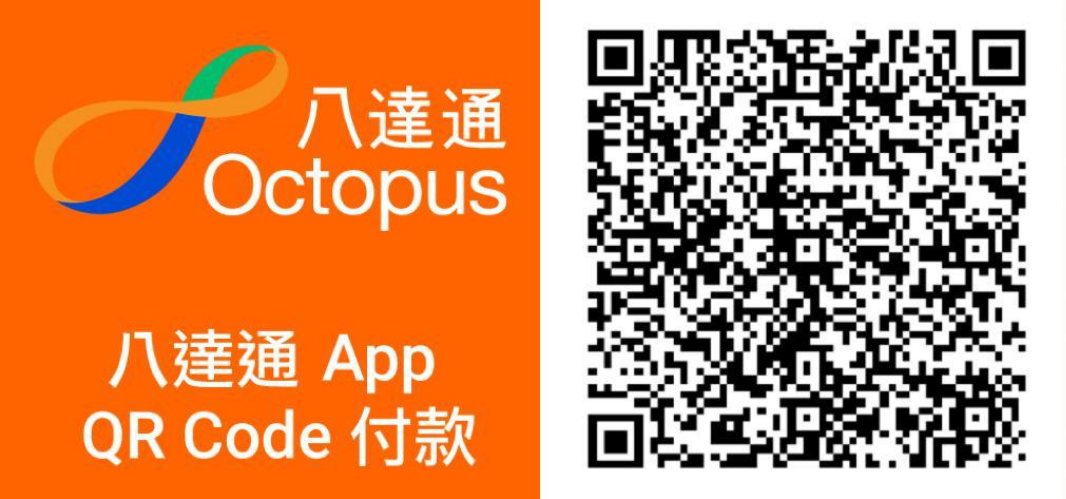
Octopus APP |
1) Please use your Octopus app to scan the below AURA Octopus Merchant QR CODE.
2) Input the payment amount and press 'Confirm' (Merchant Name is "AURA BEAUTY") 3) You may enter the order no. on Remark (optional) |